

Users
Manage users in your organization
Users are people with access to your Baseguard organization. Each user has a role that determines their permissions in the console.
Viewing Users
Navigate to Users to see all members:
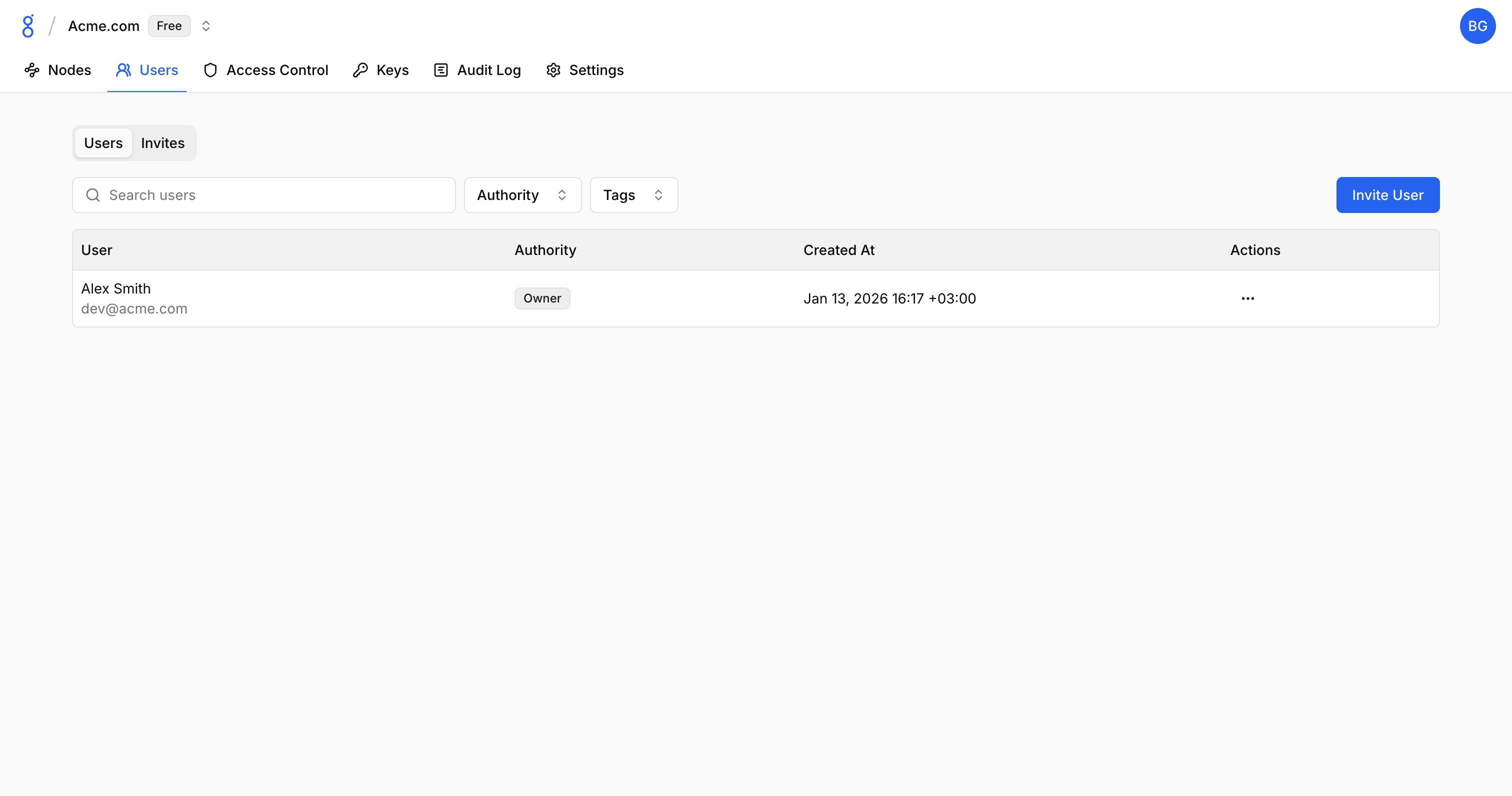
The page has two tabs:
- Users: Active organization members
- Invites: Pending invitations
Inviting Users
- Go to Users
- Click Invite User
- Enter:
- Email address
- Role (Owner, Admin, Auditor, Member)
- Click Send Invitation
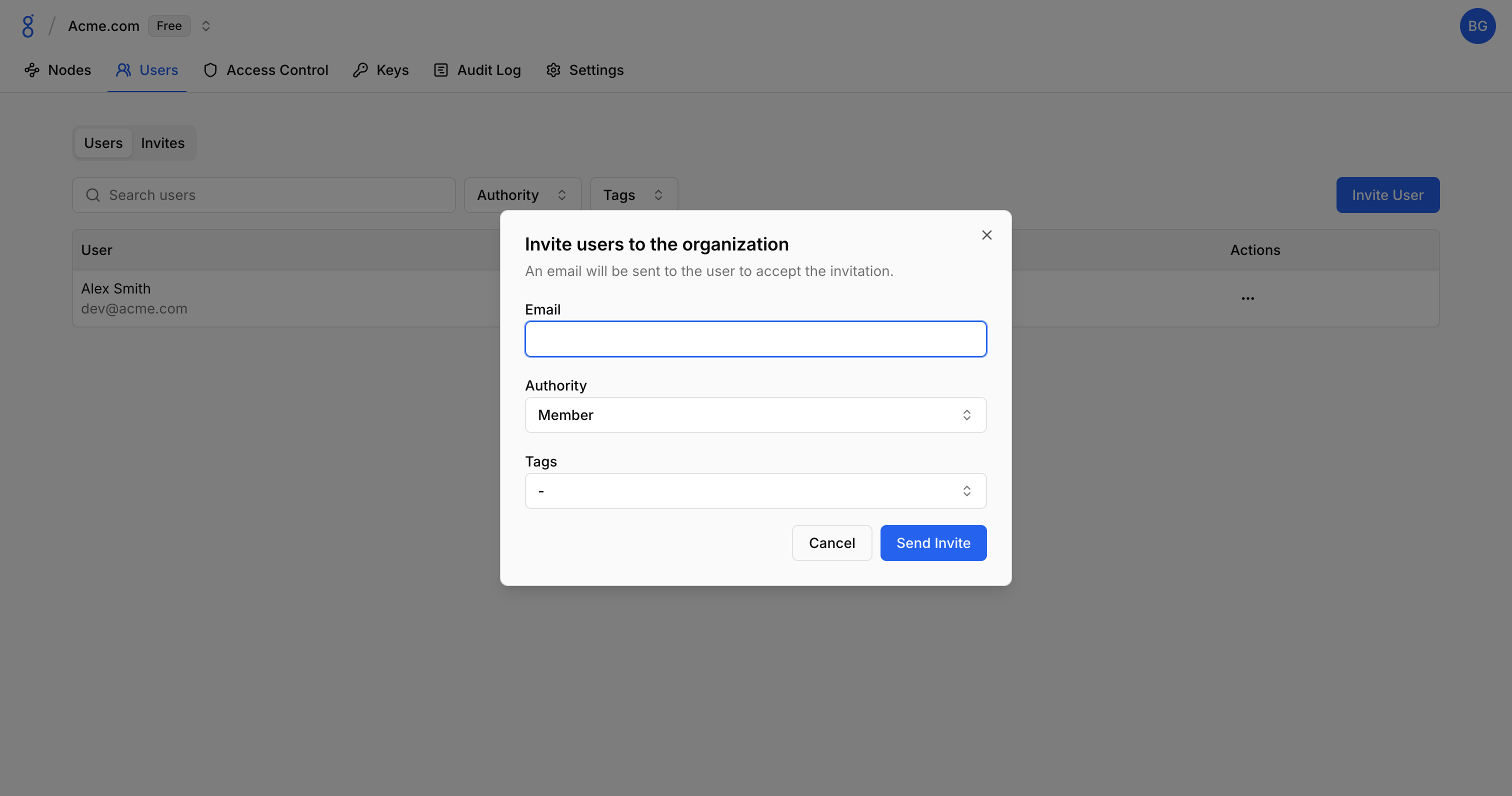
The user receives an email with instructions to join.
Roles
| Role | Description |
|---|---|
| Owner | Full administrative access including organization deletion |
| Admin | Same as Owner, except cannot delete the organization |
| Auditor | Read-only access to the console |
| Member | Can connect devices only, no console access |
Changing Roles
- Click on a user
- Select new role from dropdown
- Click Save
Note: Only owners can change other users to owner role.
Removing Users
- Click on a user
- Click Remove
- Confirm removal
Removed users lose console access immediately and all nodes registered by that user are deleted from the organization.
Pending Invitations
View and manage pending invitations:
- Go to Users
- Click the Invites tab
- Resend or cancel invitations as needed
See Also
- Authentication — Auth mechanisms
- Organizations — Organization settings
- Audit Logs — Track user actions