

Nodes
Manage devices in your network
Nodes are devices connected to your Baseguard mesh network. Each node receives an overlay IP address and can communicate with other nodes based on ACL rules.
Viewing Nodes
Navigate to Nodes to see all devices:
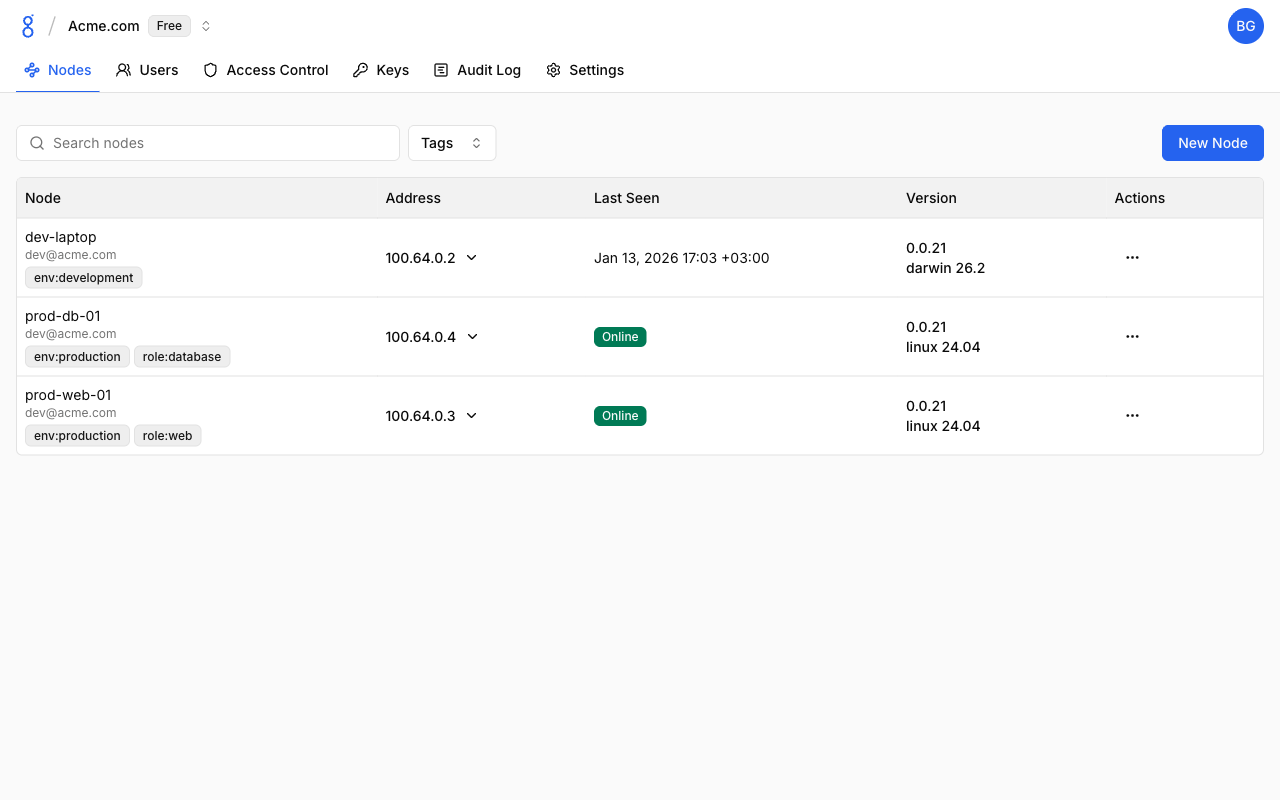
The node list shows:
- Node: Name, user email, and tags
- Address: Overlay IP address
- Last Seen: Last connection time or "Online" status
- Version: Client version and OS. An arrow icon appears when a newer release is available (see Updating Nodes)
- Actions: Menu for node operations
Use the search box to filter by node name, or filter by tags.
Node Information
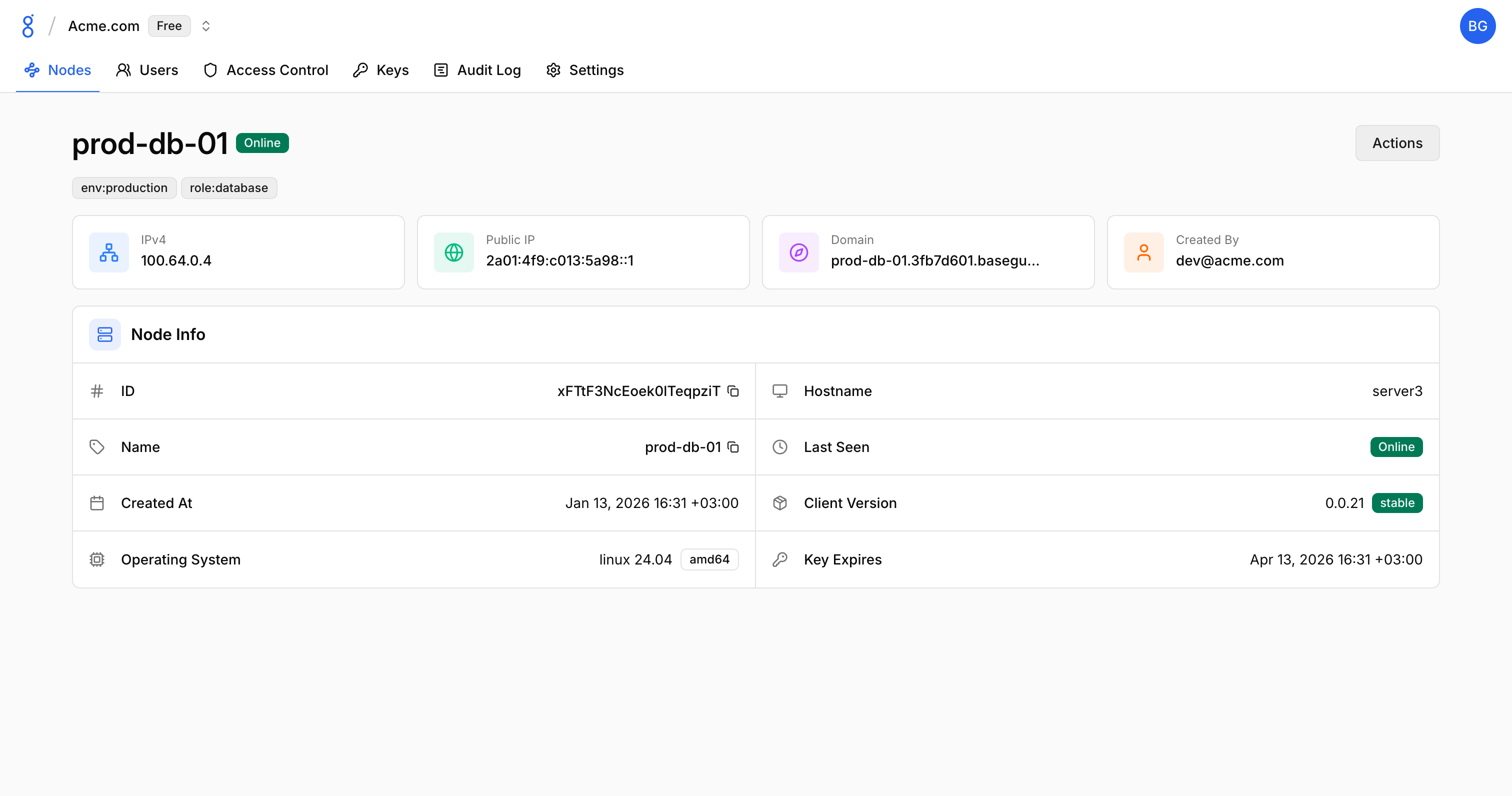
Click a node to view detailed information:
Node Actions
Edit Node
- Click on a node
- Modify name or tags
- Click Save
Remove Node
- Click on a node
- Click Remove
- Confirm deletion
Removed nodes lose network access immediately.
Disable Key Expiry
For servers that need constant access:
- Click on a node
- Click Disable Key Expiry
- Confirm
Updating Nodes
When a node runs an older version than the latest release for your organization, an update icon is shown next to its version in the Version column. The icon color reflects the severity of the release:
| Severity | Indicator | Message |
|---|---|---|
| Normal | Gray arrow | Update available: <from> to <to> |
| Security | Amber arrow | Security update available |
| Critical | Red arrow | Critical update available |
Click the icon to see the message, open the View changelog link, and — as an owner or admin — push the update right away:
- Click the update icon next to the node's version
- Click Update
The request is sent to the node over its control connection and the node installs the new version immediately (the toast Update request sent confirms delivery). The node must be online; mobile nodes (iOS/Android) cannot be updated this way and use the app stores instead.
With Auto Update enabled (the default), nodes install new releases on their own during the daily maintenance window — the manual action is only needed to update a node sooner.
Tags
Assign tags to nodes for access control. Click on a node, add tags in the Tags section, and save. See Tags for details.
Filtering and Search
- Search: Filter by node name
- Status: Show online/offline only
- Tags: Filter by specific tags
Ephemeral Nodes
Ephemeral nodes are automatically removed when they disconnect — ideal for CI/CD runners, temporary environments, and short-lived containers. Enable this option when creating a node auth key.
Node Approval
Enable Require Node Approval in Settings > Node to require administrator review before new devices can join. To bypass approval for automated deployments, use node auth keys. See Organization Settings for configuration.
See Also
- Tags — Using tags for access control
- Node Auth Keys — Automated enrollment
- API Reference — Manage nodes programmatically