

Network Rules
Configure network access control rules
Network ACLs (Access Control Lists) define what traffic is allowed between nodes in your Baseguard network. Combined with tags, ACLs implement Baseguard's zero-trust security model.
How ACLs Work
ACLs work like a stateful firewall — rules define which nodes can initiate connections, and response traffic is automatically allowed. Rule order does not matter; if any rule matches the traffic, it is permitted.
Default Allow
When you create an organization, a Default ACL rule is automatically created that allows all traffic between all nodes (source: all, destination: all, protocol: ALL). This means new organizations start with full connectivity.
You can modify or delete this default rule to implement a more restrictive security posture.
Rule Matching
When a node sends traffic:
- ACL engine checks source and destination tags
- Matches against defined rules
- If match found, traffic allowed
- If no match, traffic denied
ACL Rule Structure
Each rule has these components:
| Field | Description |
|---|---|
| Name | Descriptive name for the rule |
| Source Tags | Tags that identify source nodes |
| Destination Tags | Tags that identify destination nodes |
| Protocol | ALL, TCP, UDP, or ICMP |
| Ports | Port numbers or ranges (for TCP/UDP) |
Creating ACL Rules
In the Console
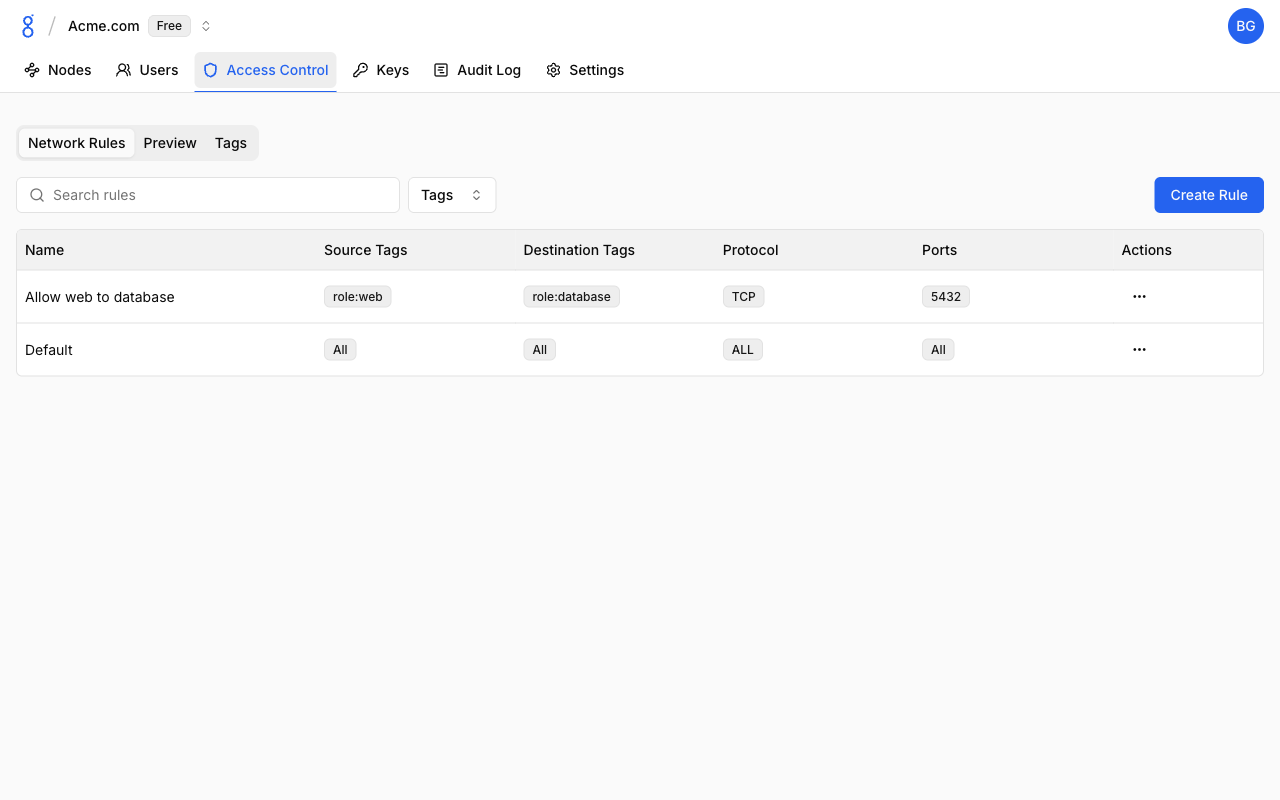
- Navigate to Access Control and click the Network Rules tab
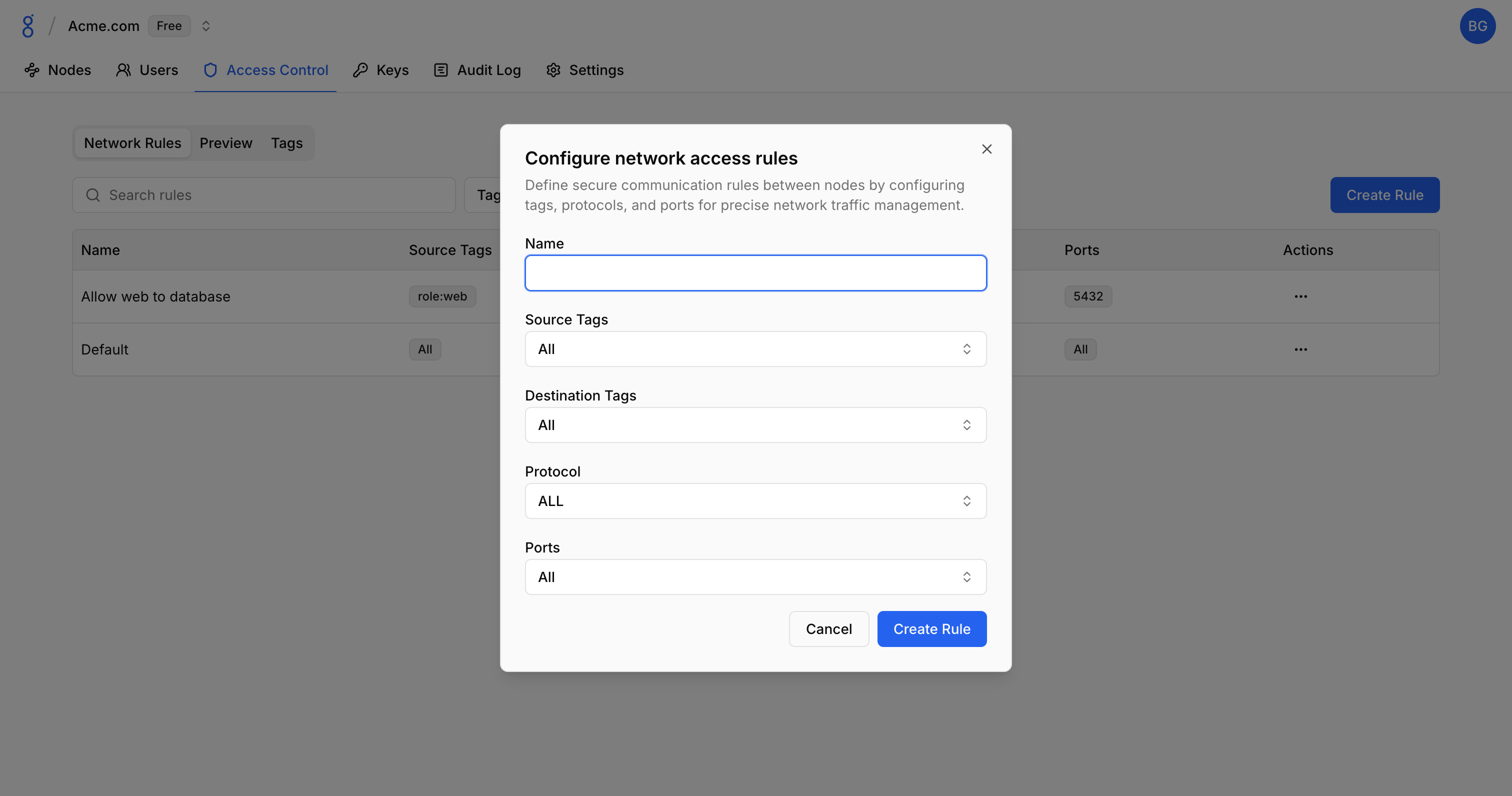
- Click Create Rule
- Fill in rule details:
- Name
- Source tags (leave empty for all nodes)
- Destination tags (leave empty for all nodes)
- Protocol
- Ports (if applicable)
- Click Create Rule
Previewing ACL Rules
The Preview tab provides a visual representation of your ACL rules, showing how traffic flows between tags.
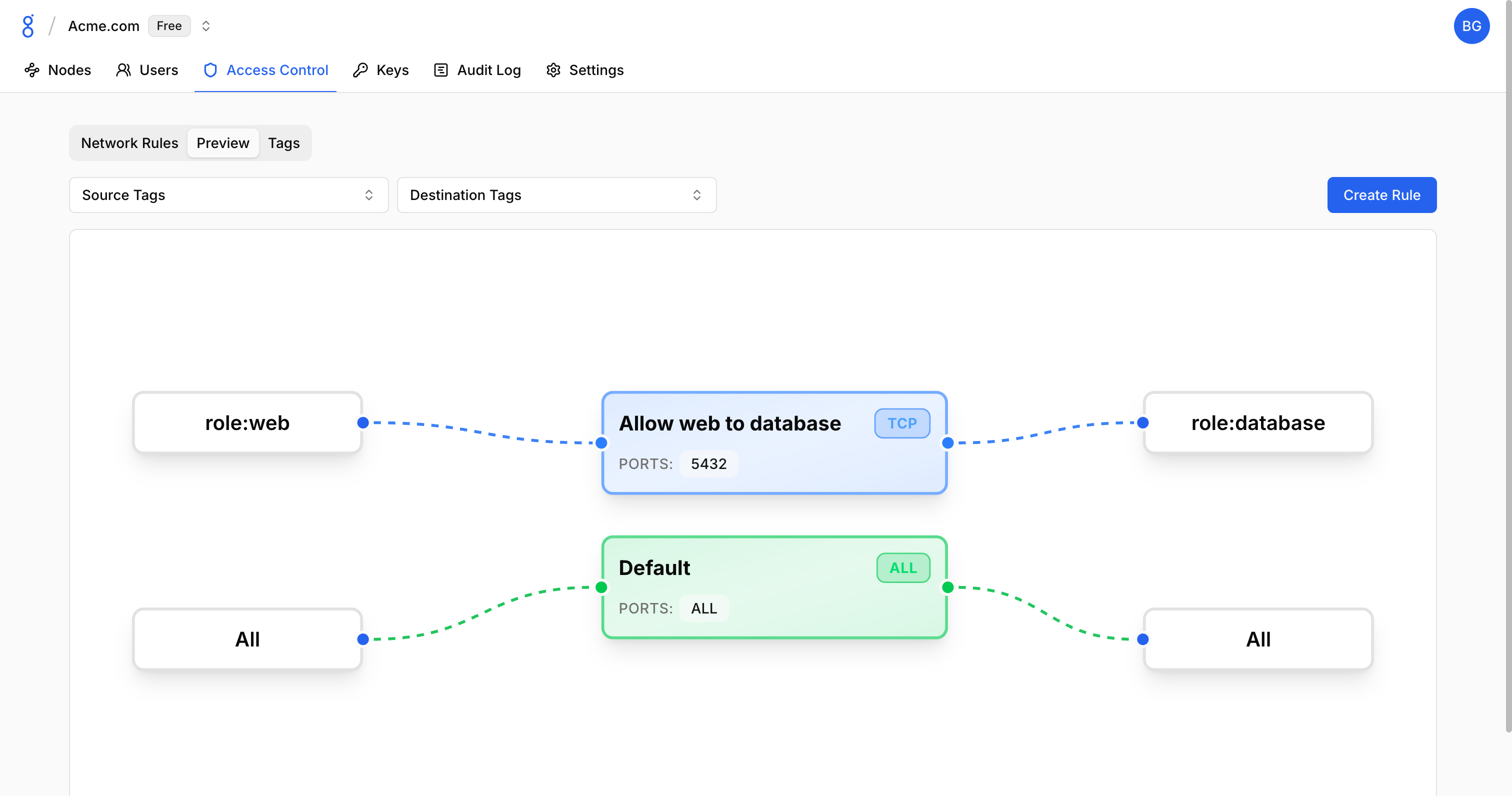
The preview displays:
- Source tags on the left
- ACL rules in the middle with protocol/port details
- Destination tags on the right
Use this view to:
- Verify rule configuration before deployment
- Understand the overall access topology
- Identify gaps or overlaps in your rules
Rule Examples
Allow All Traffic
Permit all traffic between all nodes:
Name: Allow All
Source Tags: (empty)
Destination Tags: (empty)
Protocol: ALL
Database Access
Allow app servers to reach databases:
Name: App to Database
Source Tags: app
Destination Tags: database
Protocol: TCP
Ports: 5432
SSH Access
Allow SSH from admin devices:
Name: Admin SSH
Source Tags: admin
Destination Tags: (empty)
Protocol: TCP
Ports: 22
Protocol Options
| Protocol | Description | Ports Field |
|---|---|---|
| ALL | All protocols | Not applicable |
| TCP | TCP traffic | Required |
| UDP | UDP traffic | Required |
| ICMP | Ping/ICMP | Not applicable |
Managing ACLs
Editing Rules
- Click on a rule
- Modify fields as needed
- Click Save
Changes take effect immediately — the control plane pushes updates to all connected nodes.
Deleting ACLs
- Click on an ACL rule
- Click Delete
- Confirm deletion
Traffic previously allowed by this rule will be blocked.
Troubleshooting
See Troubleshooting — Access Control Issues for solutions to traffic blocking, ACL matching, and testing problems.
See Also
- Tags — Create and manage tags for access control
- API Reference — Manage ACLs programmatically
- Zero Trust — Understanding the security model